How to Install Popcorn Time on iOS 11, iOS 10 and iOS 9 without Jailbreak using Appvalley
Step 1: Launch Safari Browser on your iPhone/iPad running iOS 11 – 10 or 9 and type “appvalley.vip” on address bar
Step 2: The Appvalley main page will load followed by a beautiful visual animation going through the background. At the center of your screen, you will see “Install AppValley”. Simply tap on it
Step 3: A pop up will appear asking you to install AppValley Beta. Tap on “Install” for one more time
Step 4: AppValley will be downloading in the background. It will take a while to complete downloading “AppValley” on your device
Step 5: When you try to open “AppValley” after the completion of installation, it will pop up a message saying “Untrusted Enterprises Developer”. This is a common issue. All you have to do is trust the app to make it work properly on your iPhone/iPad
Step 6: To trust the AppValley app, go to Settings – General – Profile & Device Management –Changzhou Olympic Stadium Management Co. Ltd and tap “Trust”. It will then verify the app and will start working
Now you have downloaded AppValley, you are ready to install Popcorn Time on your iPhone – iPad .
Step 7: Open the AppValley app and Tap on Library
Step 8: Under Apps section tap on Browse
Step 9: Scroll down and find the app that says PopcornTime
Step 10: Tap it and hit Get. It will pop up a message asking you to install or cancel. Simply hit install and it will be downloading in your iPhones home screen.
Step 9: After installing PopcornTime, follow step 6 again to trust Popcorn Time app otherwise it might not work properly.
That’s it! You have successfully installed Popcorn Time on your iPhone running iOS 11/10/9. Now you can watch your favorite Movies and TV shows online right on your iPhone or iPad.
Note: Popcorn Time may stop working when you reboot your device. If it stops working, simply install it again using Appvalley using the same procedure.
How to cancel YouTube Red Membership on iPhone, iPad, Computer, Apple TV 4
Ultimate guide about to update or cancel YouTube Red membership on iPhone, iPad
- Go to Settings app on the iPhone Home Screen.
2. Tap on iTunes & App Store (you can see under the iCloud label)
3. Tap on Apple ID
4. Choose View Apple ID
5. You will be asking Enter Apple ID Passcode.
After sign-in scroll down the screen, until you see Subscriptions label.
6. Tap on Manage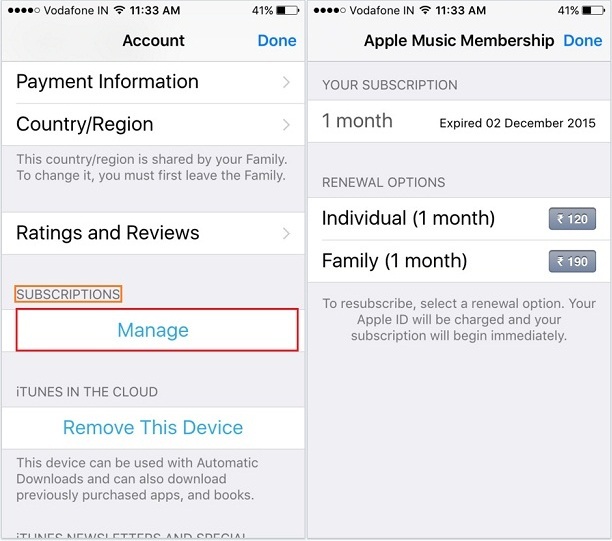
So now here you can be seeing numbers of Subscriptions services like (Apple Music memberships , Newspaper Subscriptions, Magazine subscriptions, Online Memberships or Subscriptions to services such as Netflix, Pandora, Hulu, HBO Now etc.) out of all services choose a YouTube Red service and use the onscreen listed options to manage YouTube Red Services and make disable Automatic Renewalunder the renewal options. Then tap on Done.
So your YouTube Red subscription will stop at the end of the current billing cycle.Jihosoft iPhone Backup Extractor Extract and recover all types of data from iPhone backup files, such as camera roll photos, videos, SMS, contacts, reminders, WhatsApp, and etc.
Gihosoft Free iPhone Data Recovery is a professional iPhone Data Recovery software to get back all your lost text message, photo, video, call history, note, contact and more from iPhone/iPad/iPod Touch.


No comments:
Post a Comment